
Adventure Guide
Every quest. Every item source. Click and go.
In-game quest companion for Erenshor. 170+ quests with step-by-step walkthroughs, GPS navigation, and floating world markers above every quest-relevant NPC.
Step-by-step Lunaris setup and in-game installation below.
Navigate to anything
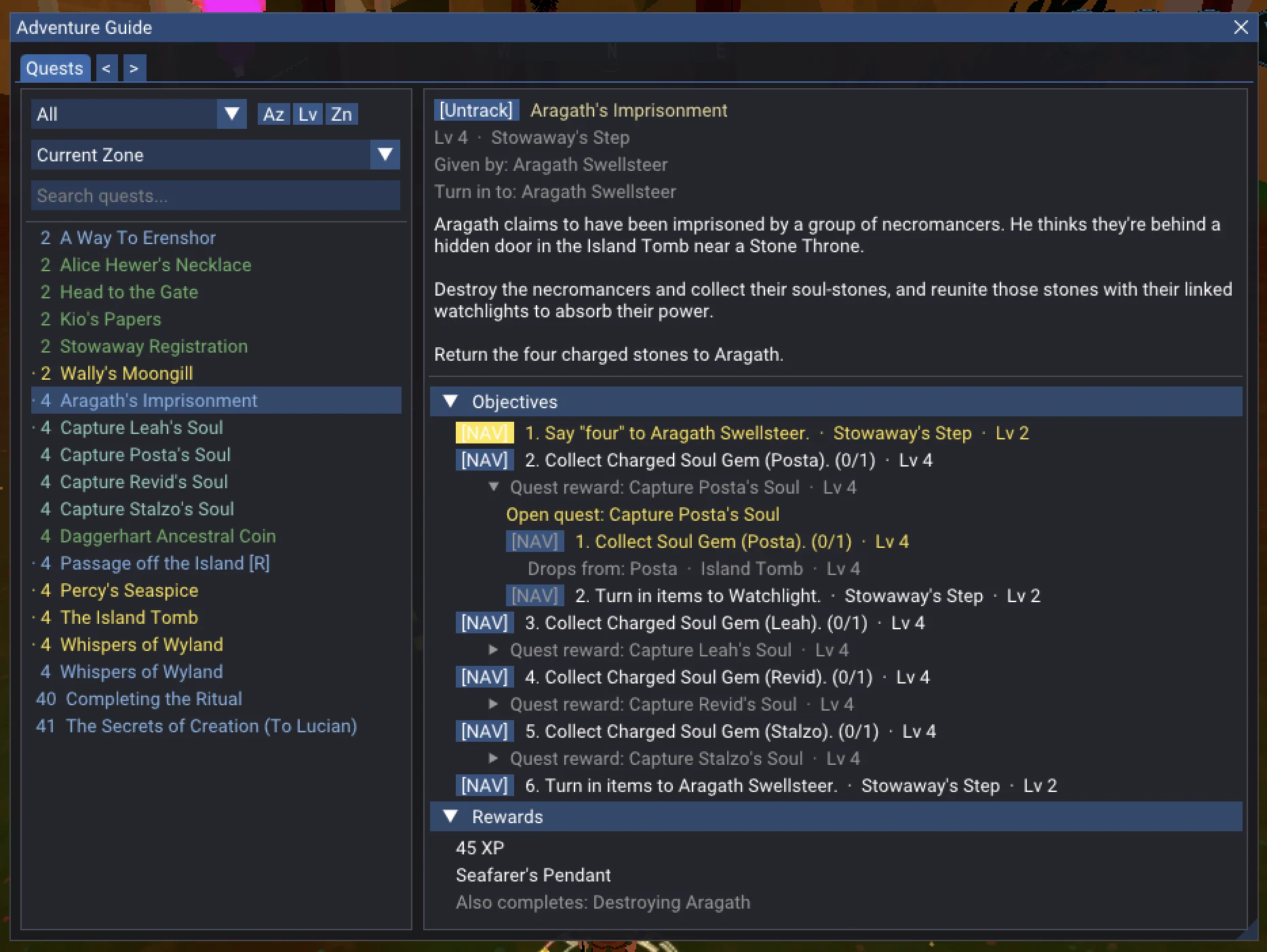
Every quest step has a [NAV] button. Click it and a directional arrow points you to your target — across zone boundaries, chaining through multiple connections to get you there.
Need an item? Every source is listed — enemy drops, vendors, mining nodes, fishing spots, crafting recipes, quest rewards. Click any source and the arrow takes you to it. When a source is another quest's reward, that quest's walkthrough unfolds inline with its own nav buttons.
See what you've been missing
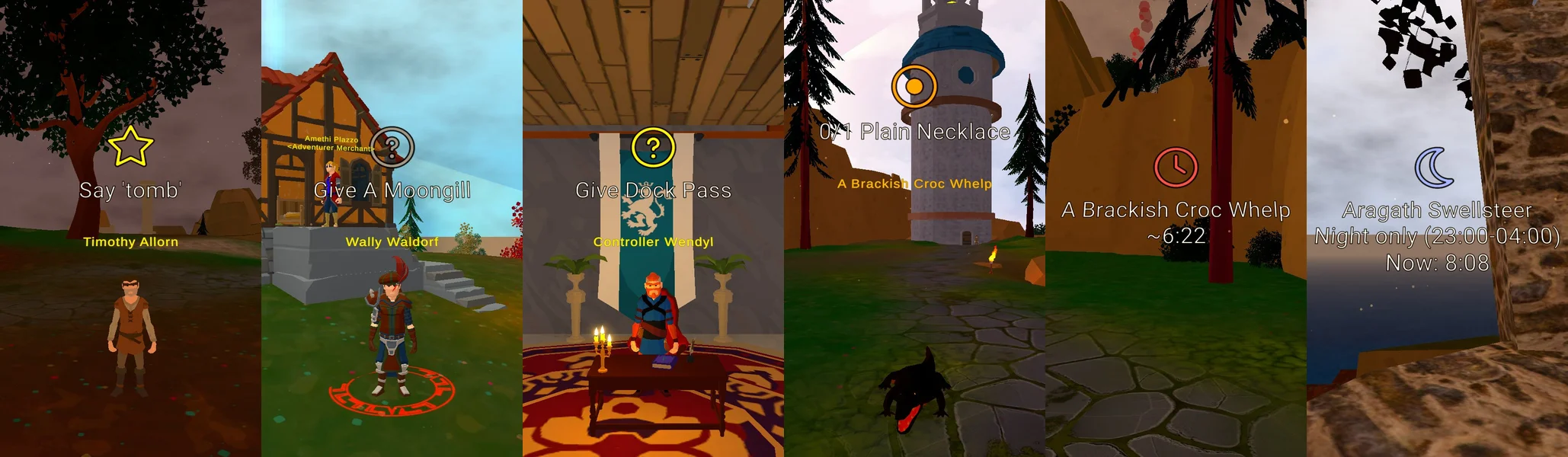
Floating icons appear above NPCs in the game world — quest givers you've walked past, turn-in targets waiting for your items, enemies you need to hunt down. Kill a quest mob and its marker switches to a live respawn countdown. Night-only spawns show the spawn window and current game time so you know when to come back.
Know the whole path
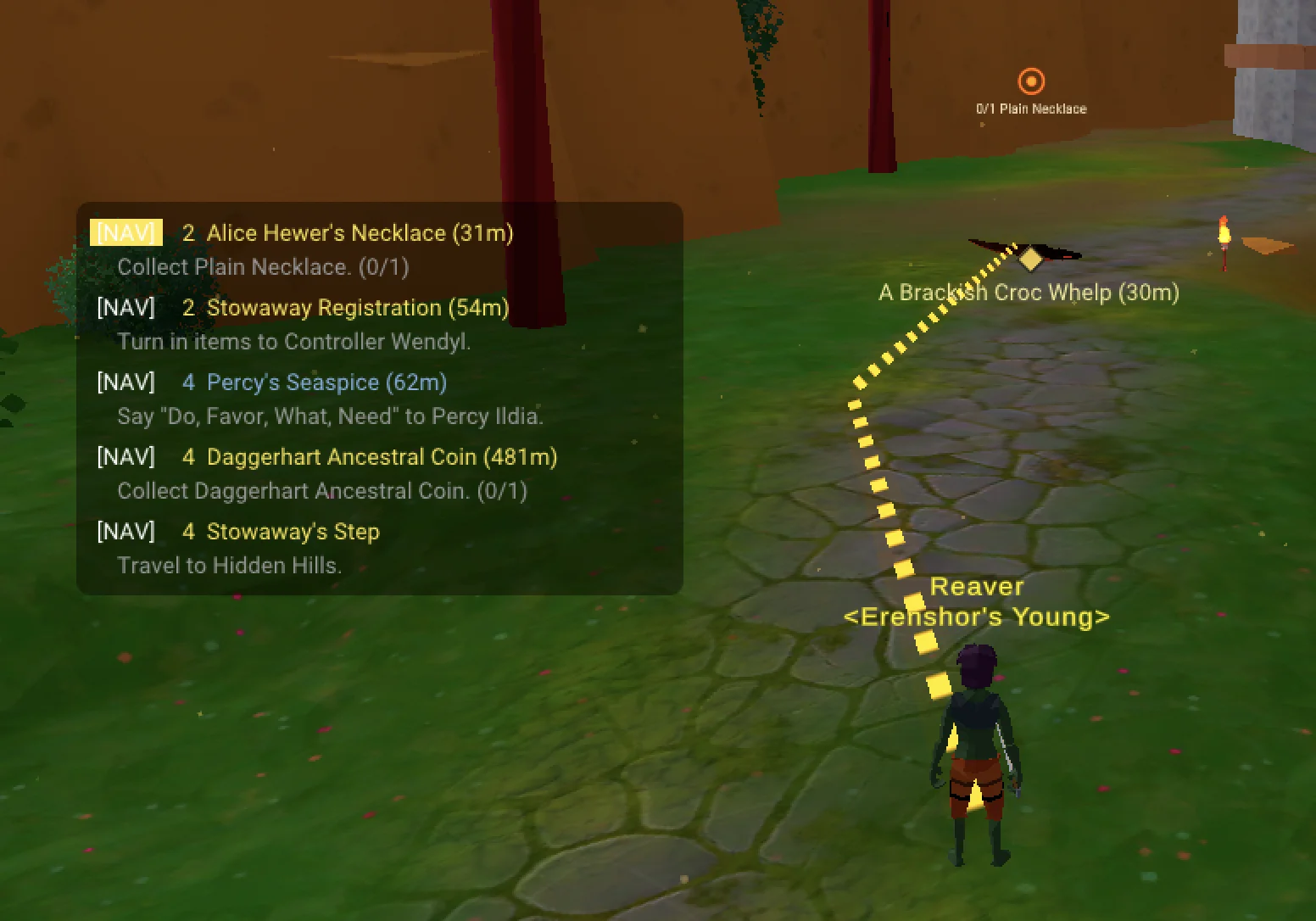
Each step tells you who to talk to, what to say, where to go, and what items to collect. Level estimates on quests and steps show what you're ready for and help you tackle things in the right order. Come back after a week and your progress, item counts, and active step are right where you left them.
Install Adventure Guide
Lunaris manages Adventure Guide installation and updates while the game runs.
Install with Lunaris
- Extract
winhttp.dllfrom the latest Lunaris release next toErenshor.exe. - Launch the game.
- Open Lunaris from the icon on the main menu.
- Find Adventure Guide in Lunaris, then select Install.
Thunderstore (BepInEx)
Thunderstore is retained for BepInEx users. View on Thunderstore.
Keyboard shortcuts
L Open the Adventure Guide
K Open the quest tracker
P Toggle ground path overlay
Configuration
These settings control Adventure Guide behavior and are listed with their defaults below.
| Setting | Default | Description |
|---|---|---|
| ShowArrow | on | GPS arrow pointing to navigation target |
| ShowGroundPath | off | Ground path line using NavMesh pathfinding |
| ShowWorldMarkers | on | Floating quest icons above NPCs |
| TrackerEnabled | on | Quest tracker overlay |
| TrackerAutoTrack | on | Auto-track newly accepted quests |
| ReplaceQuestLog | off | J opens Adventure Guide instead of the game's quest log |
| UiScale | auto | UI size factor (-1 = auto-detect from resolution) |
| TrackerBackgroundOpacity | 0.40 | Tracker overlay transparency |
| TrackerSortMode | Proximity | Sort tracked quests: Proximity, Level, or Alphabetical |
| MarkerScale | 1.0 | World marker size multiplier |